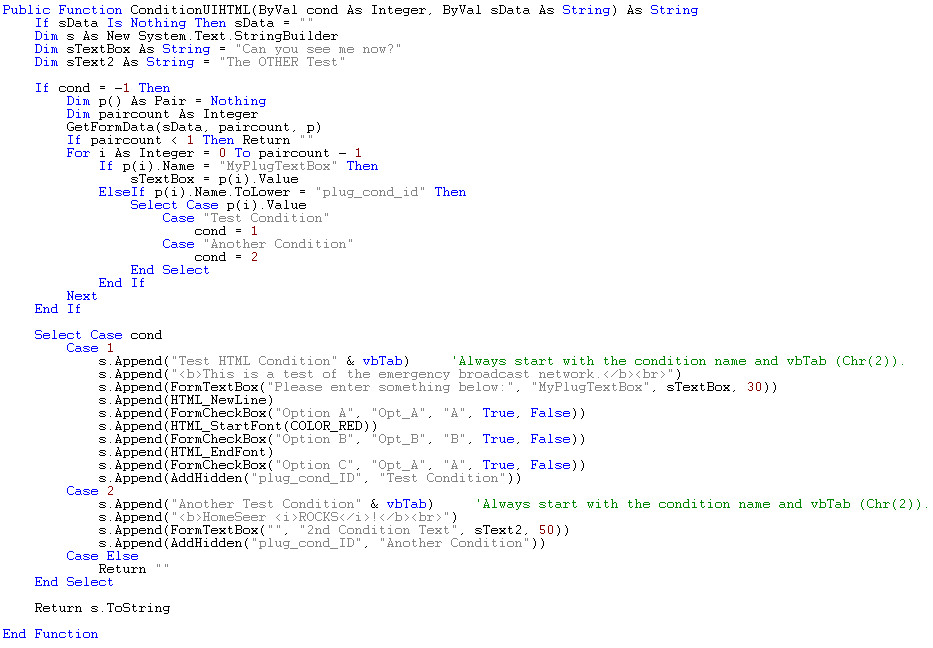
ConditionUIHTML accepts two parameters, an integer condition number and a string data parameter, and returns HTML text that is to be displayed as the ConditionUI.
The conditions displayed by HomeSeer are already a part of a form and a table. You can create new tables in your HTML, but you may not have additional forms as they will NOT be processed by HomeSeer. If you create your own tables, be sure that you do not leave any open table tags or include additional table ending tags as that will corrupt the display of the conditions for the end user.
When a condition is being added to an event, HomeSeer will call ConditionUIHTML starting with a condition number of 1, and it will keep calling this procedure until a null (empty) string is returned. When this happens, the data parameter is an empty string. With the new ConditionUIHTML functions, conditions may now be edited by the end user. When the end user chooses to edit their condition, ConditionUIHTML will be called with a -1 value for the condition number, and their current condition data will be passed as the data string parameter. Your code must determine which condition the data is for (so you must include this information in your data string) so that you can draw in HTML the appropriate ConditionUI with the user's selections already filled in.
The example below is hyperlinked to a .VB code file that contains the same procedure, but with comments throughout so that you can understand what is going on. This is the same procedure that you can find in the example plug-in source code which you may access here.
See Also